PO Box 1296

Gulfport, MS 39502

Phone:       228-868-3250

Fax:           228-868-3436


Delta Computer Systems, Inc.


Download Tax sale Data from the Internet


1.   Log on the Internet.


2.   Enter the following in your address box located in your toolbar at the top of the screen.


http://www.deltacomputersystems.com


3.   Press [enter]. Move your mouse pointer to "Services" and left click.


4.   Move your mouse pointer to “Tax Sale Downloads” and left click.


5.   Move your mouse pointer to “Proceed to Tax Sale Downloads” and left click.


6.   Log in using your user ID and password.


7.   Move your mouse pointer to the County “File”  (MS##SAE) you want to download and click the right mouse button.  A drop-down menu will be displayed.


8.   Move your mouse pointer to “SAVE TARGET AS” and click the left mouse button.


8.   A “SAVE AS” window will open.  Navigate to the folder you want the file saved.


9.   For “SAVE AS TYPE” select “All Files.”


10. For “FILE NAME” enter an appropriate description for the file name followed with .csv file extension.


11. Move your mouse pointer to the “SAVE” button and click the left mouse button.


12. After you downloaded all the files you want, move your mouse pointer to Logout and click the left mouse button.


13. Exit the internet like you always do.


14. Move your mouse pointer to the “START” button in the bottom-left corner of your desktop and click the left mouse button.


15. Move your mouse pointer to “PROGRAMS” then, to Microsoft Excel and click the left mouse button.


16. You are now ready to open the file in Microsoft Excel®.  * Screen exhibits were created using ‘Microsoft Excel 97®’.


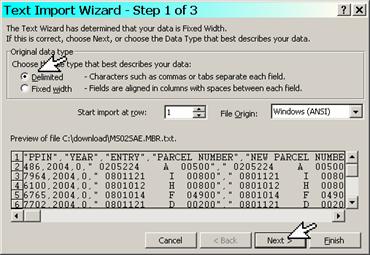
17. In Excel®, left click ‘FILE’ then, ‘OPEN’.  Once you have located the file on your PC, move your cursor to the file and left click your mouse button.  You should see a window appear (Text Import Wizard – Step 1 of 3). 
 

18. Left click the ‘Delimited’ option and left click the ‘Next’ button at the bottom.


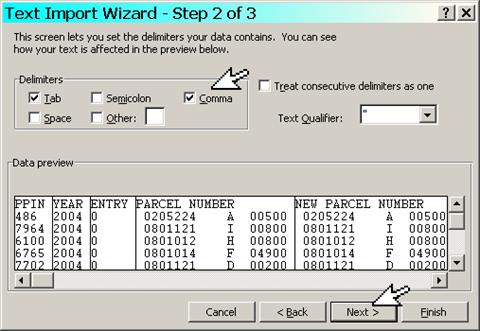
19. Text Import Wizard – Step 2 of 3’ window will appear.  Left click on the ‘COMMA’ option and left click the ‘NEXT’ button.


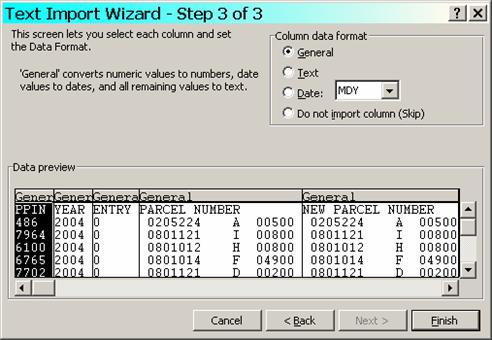
20. Leave the next screen as it is defaulted and left click the ‘FINISH’ button.


21. Your file will now open.     


22. You can format the columns by selecting Format, Auto-format, Simple.  This selection will format the columns to the appropriate width.  You will want to have your cursor position in cell 1A when you begin formatting.